
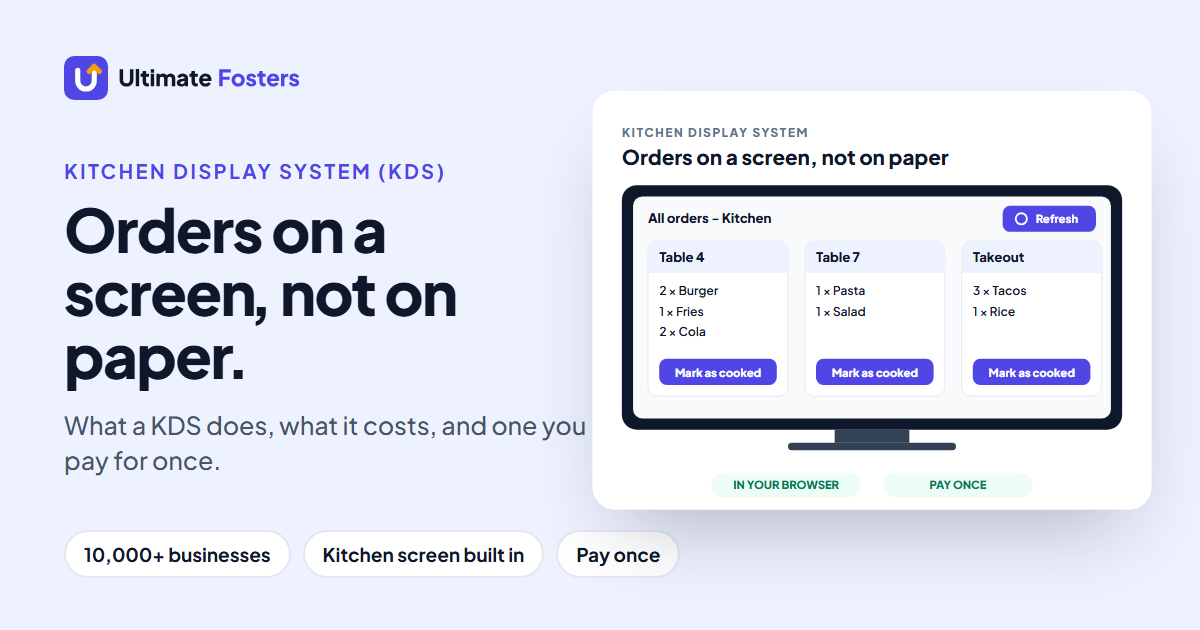
Short answer: A kitchen display system (KDS) is a screen in the kitchen that shows each order from the POS, so cooks work from the screen instead of paper tickets. Most KDS software, though, charges a monthly fee for every screen.
UltimatePOS has a kitchen screen built in, so orders go from the POS to the kitchen, cooks mark them cooked, and servers see them ready. It is all included for $79 once, with no fee per screen. Used by 10,000+ businesses and rated 4.3+/5 from 500+ ratings on CodeCanyon.
Try UltimatePOS in the live demo (no sign-up) or see what the $79 license includes.
How a KDS works · KDS prices · The UltimatePOS kitchen screen
Written by the Ultimate Fosters team, who have built and supported UltimatePOS for 10+ years. Updated November 2026, with every price checked on the vendor’s own site.
Paper tickets fail in the same ways every night. One falls behind the grill, another is hard to read, and nobody out front knows which table’s food is nearly ready. A kitchen display system (KDS) fixes that by putting every order on a screen the whole line can see.
Most KDS software also charges for every screen, every month: Square Plus with two kitchen screens costs $109 a month for one location. UltimatePOS includes its kitchen screen in one $79 license, paid once. You can follow an order from the till to the kitchen in the live demo.
What is a kitchen display system (KDS)?
A kitchen display system (KDS) is a screen in a restaurant kitchen that shows orders from the point of sale (POS) as soon as they are taken. Cooks read each order on the screen, mark it done when it is ready, and the front of house sees its status. It replaces paper kitchen tickets.
In a POS, the KDS meaning is the kitchen’s view of the same orders. The POS is where an order is taken and paid for, while the KDS is where the kitchen sees and clears it. People also call it a kitchen screen system, a kitchen order system or a kitchen display screen.
Your restaurant probably needs one when you see these signs:
- Tickets get lost, smudged or read wrong, so dishes are remade.
- Servers keep walking to the pass, because nobody knows if an order is ready.
- Takeout and dine-in orders pile up on one spike, so nobody knows what to cook next.
- You can’t tell which table has waited longest, so the wrong one gets served first.
How a kitchen display system works
Every KDS follows the same basic path, from the order at the counter to the plate on the table:
STEP 1
Take the order
The server or cashier enters it at the POS.
STEP 2
Send it to the kitchen
The order appears on the kitchen screen.
STEP 3
Cook and clear it
The cook marks it cooked, so it leaves the kitchen queue.
STEP 4
Serve it
The server sees it ready and marks it served.
That is the core of every kitchen display system for restaurants. Larger systems then add extras for busy kitchens, for example:
- Station routing: grill items go to the grill screen and drinks to the bar.
- Ticket timers: orders change color as they wait longer.
- Bump bars: a small keypad that clears orders with greasy hands.
- Recall and reports: bring back a cleared order and see average ticket times.
Most small kitchens, however, use only the core path. So check which extras you will really use before you pay for them every month.
KDS vs kitchen printer
The kitchen printer is what most restaurants use before a KDS. So here is how the two compare day to day:
Swipe the table sideways to see all columns →
| Kitchen printer | Kitchen display system | |
|---|---|---|
| How the kitchen sees orders | A paper ticket for each order | Every open order on one screen |
| Order status | None, so servers have to ask | Marked cooked, then served |
| Lost or unreadable tickets | Common in a hot, busy kitchen | Orders stay on screen until cleared |
| Running cost | Paper rolls | Often a monthly fee per screen (none with UltimatePOS) |
| Hardware | A thermal printer | A tablet, monitor or kitchen-grade screen |
You don’t always have to pick one. In UltimatePOS, for instance, orders appear on the kitchen screen and kitchen tickets also print on your receipt printer, so you can keep paper as a backup while the team gets used to the screen.
Types of kitchen display systems
KDS products come in three types. The type decides what you pay, which POS you can use and how much setup it takes.
Swipe the table sideways to see all columns →
| Type | How it works | Examples |
|---|---|---|
| Built into your POS | The kitchen screen is part of the POS, so orders flow with no extra app | UltimatePOS (included); Square KDS app on its paid plans; Loyverse KDS app |
| Standalone KDS software | A separate app or service that connects to your POS | Fresh KDS |
| Dedicated KDS hardware | Kitchen-grade screens sold with a POS brand’s software | Toast KDS |
A built-in kitchen screen is the simplest choice for most small restaurants, because there is nothing to connect and no second bill. Standalone kitchen display system software, on the other hand, suits kitchens that want advanced extras on top of the POS they already have.
What a kitchen display system costs
KDS pricing has two parts: the software, usually charged per screen each month, and the screen itself. These are the prices for each KDS system, checked on the vendor’s own site:
Swipe the table sideways to see all columns →
| System | KDS price | What you also need | Watch out |
|---|---|---|---|
| UltimatePOS | Included in $79 once | Any device with a web browser | You install it on a web server, or we do it for you |
| Square KDS | $30 a month per device with Plus, $20 with Premium | A Plus plan at $49 or Premium at $149 a month per location | The free plan has no KDS app, and you must take card payments through Square |
| Fresh KDS | $20 (Essentials) or $27 (Premium) a month per screen, billed monthly | A POS to connect it to | A 7-day free trial, then a fee for every screen |
| Loyverse KDS | Free app | Loyverse POS and an iPad or Android tablet | Shows orders from Loyverse POS only |
| Toast KDS | No KDS price on its pricing page | Toast POS, from $69 a month (or a $0 Starter Kit on pay-as-you-go) | Toast hardware that works with Toast POS; Toast offers a demo |
Checked in November 2026 on Square, Fresh KDS, Loyverse, Toast and CodeCanyon. Vendors change prices, so check before you buy.
How per-screen fees add up
For example, one location on Square Plus with 2 kitchen screens pays $109 a month ($49 + 2 × $30), and 2 Fresh KDS Essentials screens add $40 a month on top of your POS. UltimatePOS, by contrast, includes the kitchen screen in its $79 one-time license, with no fee per screen. See what the license includes.
What about the screens?
For the screens, a spare tablet works for a quiet kitchen. A busy line, however, is better served by a larger touch monitor rated for heat and splashes. Mount it at eye level away from the fryer, and use a wired connection where you can, because kitchen Wi-Fi is often weak. For a full breakdown of POS hardware and card fees, see our POS system cost guide.
The UltimatePOS kitchen screen: a KDS with no monthly fee
UltimatePOS is the restaurant POS we have built and supported for 10+ years, and its kitchen screen is part of the core product. Here is how an order moves through a restaurant that runs on it:
- Take the order. The server picks the table and adds the dishes on the POS screen. A tick in the send-to-kitchen box sends it to the kitchen.
- Cook it. The order appears on the Kitchen screen with its details. When the dish is ready, the cook clicks Mark as Cooked.
- Serve it. The order moves to the Orders screen, where the server sees it is ready, takes it to the table and clicks Mark as Served.
- Close the bill. Take payment on your own card terminal and print the receipt as usual.
Drink-only or ready-made orders don’t need the kitchen, so leave the box unticked for them. If you also want paper, kitchen tickets print on the same receipt printer, as the kitchen order docs explain.
Set it up in 4 steps
- Turn on the Tables, Service Staff and Kitchen modules in your settings, as shown in the restaurant setup guide.
- Add your tables for each location.
- Give your servers a role with the Service Staff option in role management.
- Open the Kitchen screen in a browser on the kitchen device, and set how often it refreshes to match your pace, for example every 30 seconds for a busy line. Staff can also tap Refresh at any time.
Why restaurant owners choose UltimatePOS
- No fee per kitchen screen. $79 once for the Regular license on CodeCanyon, with future updates, 6 months of support and no monthly KDS bill.
- One system, front to back. Tables, add-ons, the kitchen screen, bookings and billing all work together, so there is nothing to connect.
- Servers stay on top of their tables. The Orders screen can be filtered by server, so each one sees their own orders, and a staff PIN links the right person to every order.
- Any card processor. Keep your bank’s terminal or pick a cheaper processor, because UltimatePOS records the payment either way.
- Your data, your server. It runs on your own server, with backups to the server or AWS S3. As a result, nobody can lock you out of your records.
UltimatePOS at a glance
| UltimatePOS | |
|---|---|
| Price | $79 once for the Regular license on CodeCanyon |
| Kitchen screen | Included, with Mark as Cooked and Mark as Served |
| Restaurant tools | Tables, service staff, add-ons, bookings and kitchen tickets |
| Runs on | Any computer, tablet or phone with a web browser |
| Card payments | Any terminal or processor you choose, because UltimatePOS only records the payment |
| Updates and support | Future updates and 6 months of support included |
| Setup | Our installation guide, or our installation service for $25 |
| Try it | Live demo, no sign-up |
“This is the best you can get without all the bloat and unnecessary subscriptions of larger enterprise systems.”
CodeCanyon buyer review of UltimatePOS
See the kitchen screen in the live demo
Open the restaurant demo, take an order and follow it to the kitchen. No sign-up needed.
For tables, bookings and the rest of a restaurant setup, see our restaurant POS system page.
Which KDS setup fits your restaurant?
Here is what matters most in each kind of food business, and how UltimatePOS handles it:
Swipe the table sideways to see all columns →
| Business | What matters most | With UltimatePOS |
|---|---|---|
| Full-service restaurant | Table numbers on every order, and servers who know when food is ready | Pick the table and server on each order; servers see cooked orders on the Orders screen |
| Quick service and takeout | Telling dine-in, takeout and delivery orders apart | Set your own service types, such as dine-in, takeout and delivery, on each order |
| Café or coffee shop | Fast counter orders, with drinks made at the bar | Sell without a table, and leave the send-to-kitchen box unticked on drink-only orders, so they skip the kitchen |
| Bar with a kitchen | Only food orders should reach the cooks | Leave the box unticked on drink-only orders, so the cooks see only orders with food |
| Small kitchen or food truck | One screen and a low running cost | One tablet or monitor with a browser, connected to your UltimatePOS server, and no monthly KDS fee |
| Several locations | Separate tables and stock for each site | Each business location has its own tables and stock, all on one license |
Whichever type you run, you can try the same flow in the live demo before you buy.
How to choose a kitchen display system for your restaurant
The best kitchen display system for your restaurant is the one your cooks can read at a glance and your budget can carry every month. Ask these 8 questions of every restaurant kitchen display system on your shortlist:
- Does it work with your POS, or do you have to change POS to use it?
- What does it cost per screen each month, and how many screens do you need?
- Can you use your own tablets or monitors, or must you buy its hardware?
- Can servers see when food is ready without walking to the kitchen?
- Can you keep drinks and ready items off the kitchen screen?
- Do you need separate screens for the grill, fryer and bar, or does one screen cover your line?
- Can you still print a kitchen ticket when you want paper?
- Where does your order data live, and what happens if you stop paying?
Then test it with a real rush: enter ten orders quickly, change one, and see how fast the kitchen and the servers can follow them. You can try this in the UltimatePOS live demo without signing up. If you are moving off Square or Clover, our guides to Square alternatives and Clover fees cover the switch.
Kitchen display system FAQs
What does KDS stand for?
KDS stands for kitchen display system. In a restaurant, the KDS meaning is a screen that shows each order as soon as it is taken at the POS, so cooks read orders on the screen instead of on paper tickets. Outside restaurants, KDS can mean other things, but in a POS it always means the kitchen screen.
What is KDS in POS?
In a POS, the KDS is the kitchen side of the system. The cashier or server enters the order at the POS, and the KDS shows it to the kitchen. In UltimatePOS, for example, the kitchen screen is part of the POS itself, so there is no separate KDS app to buy or connect.
What is a KDS display?
A KDS display is the screen the kitchen reads orders from: a tablet, a touch monitor or a kitchen-grade screen mounted near the line. The KDS software runs on it and keeps each order on screen until the cook clears it. With UltimatePOS, the KDS display can be any tablet, computer or touch monitor with a web browser that can reach your UltimatePOS server.
How does a kitchen display system work?
A server or cashier takes the order at the POS. The order then appears on the kitchen screen, the cook prepares it and marks it done, and the front of house sees that it is ready to serve. Larger systems add station routing, timers and bump bars on top of that.
What is the difference between a POS and a KDS?
The POS takes the order and the payment at the front. The KDS shows that order to the kitchen at the back. Many restaurants buy them separately, but some POS systems, UltimatePOS included, have the kitchen screen built in.
How much does a kitchen display system cost?
Most KDS software is billed per screen each month. Based on the prices we checked in November 2026, Square charges $20 to $30 a month per device on its paid restaurant plans, and Fresh KDS charges $20 to $27 a month per screen, billed monthly. You also need a screen for each station. UltimatePOS includes its kitchen screen in the $79 one-time license.
Is there a free kitchen display system?
Loyverse offers a free KDS app, but it only shows orders from Loyverse POS. Fresh KDS has a 7-day free trial and then a monthly fee per screen, and Square’s free restaurant plan has no KDS app. UltimatePOS is not free: it is $79 once, with the kitchen screen included and no fee per screen.
How much does Square KDS cost, and is it free?
Square KDS is not free. Based on Square’s pricing page in November 2026, the KDS app costs $30 a month per device on Square Plus ($49 a month per location) or $20 a month per device on Premium ($149 a month per location), and the free plan does not include it. UltimatePOS includes its kitchen screen in the $79 one-time license, with no fee per device.
Is there a cheaper POS than Square for a restaurant?
Yes, once you count the monthly fees. Square’s free plan has no KDS app, so a kitchen screen means Square Plus at $49 a month per location plus $30 a month per screen. UltimatePOS costs $79 once, with the kitchen screen, tables and service staff included and no monthly software fee. You run it on your own web server (or use our $25 installation service), and card fees go to the processor you choose. Our guides to Square alternatives and the cheapest POS systems compare more options.
What POS systems do most restaurants use?
In the US, many small restaurants use monthly cloud systems such as Toast, Square and Clover, which bundle card processing with the POS. Others choose a POS they pay for once and run on their own server, such as UltimatePOS, and keep their own card terminal. Whichever you pick, check that it has tables, service staff and a kitchen screen. UltimatePOS includes all three for $79 once, as our restaurant POS page shows.
What are the benefits of a kitchen display system?
The main benefits are fewer lost or misread tickets, clearer order details for cooks, and servers who can see when food is ready without walking to the kitchen. A KDS also cuts paper costs and makes it easy to see which table has waited longest.
Do I still need a kitchen printer if I have a KDS?
Not for every order, but many kitchens keep one as a backup or for takeout labels. UltimatePOS can do both: orders show on the kitchen screen, and kitchen tickets print on the same receipt printer you use at the counter.
Can I use a tablet, monitor or TV as a kitchen display?
Yes, with most app-based or browser-based systems. Choose a screen that is large enough to read from the line and keep it away from direct heat and splashes. Because UltimatePOS runs in a web browser, its kitchen screen opens on any tablet, computer or touch monitor in the kitchen that can reach your UltimatePOS server.
Is a KDS worth it for a small restaurant?
It usually is once lost or unreadable tickets start causing remakes and slow service. A small kitchen may need just one screen. Since most KDS software charges per screen every month, a system with the kitchen screen built in, such as UltimatePOS for $79 once, has no monthly KDS fee at all.
What are the disadvantages of a kitchen display system?
The common ones are a monthly fee for every screen, the cost of kitchen-grade hardware, the need for steady power and a network connection, and the time it takes to train staff. Also, heat and grease can shorten the life of a cheap tablet.
Does UltimatePOS have a kitchen display system?
Yes. UltimatePOS has a built-in kitchen screen: orders sent from the POS appear there, the cook marks them as cooked, and service staff see them on the Orders screen and mark them as served. It is included in the $79 one-time license.
How does the UltimatePOS kitchen screen show new orders?
Staff can tap the Refresh button on the kitchen and orders screens to pull in new orders at any time. The screens also refresh on their own, and you choose how often: one setting, orders_refresh_interval in the config/constants.php file, sets the time in seconds, so a busy kitchen can refresh every 30 seconds, for example. It ships set to 600 seconds, and the restaurant docs show where to change it.
Can I keep drink-only orders off the kitchen screen?
Yes. On the UltimatePOS POS screen, a send-to-kitchen checkbox decides whether an order goes to the kitchen. Leave it unticked for orders that need no cooking, and they skip the kitchen screen.
Can each server see only their own orders?
Yes. The UltimatePOS Orders screen has a service-staff filter, an “All your orders” list and a Line Orders list for items assigned to a server on each order line. You can also turn on a service staff PIN so the right person is linked to each order.
Does a KDS work for cafés, food trucks and bars?
Yes. Any place that prepares orders after they are taken can use one, including coffee shops, food trucks, bars and food courts. UltimatePOS works wherever the kitchen device can reach your UltimatePOS server.
Does UltimatePOS take card payments?
No. UltimatePOS records the payment, and the card goes through a terminal from your bank or any processor you choose. As a result, you can change processor for a better rate without changing your POS or kitchen screen.
Do I need technical skills to install UltimatePOS?
Some. It needs a web server, either a cloud server or a computer in your restaurant. Our installation guide walks you through it, or our installation service sets it up for $25.
Put your orders on a screen, not on paper
UltimatePOS: $79 once, kitchen screen included, any card processor and your data on your own server. Updates and 6 months of support included.
About this guide
Written by the team at Ultimate Fosters, who build and support UltimatePOS, a POS and inventory system used by 10,000+ businesses for 10+ years. We checked every KDS price on the vendor’s own website in November 2026, tested the kitchen and orders screens in the UltimatePOS live demo, and linked each UltimatePOS feature to its documentation. Prices change, so check them before you buy.
Sources
- Pricing: Square for Restaurants and Square KDS, Fresh KDS, Loyverse KDS, Toast and Toast KDS, UltimatePOS on CodeCanyon
- UltimatePOS documentation: tables, service staff, kitchen, kitchen order, line orders, service staff PIN
Related: restaurant POS system · POS system cost · cheapest POS system · Square alternatives · Clover fees · open source POS systems
Leave A Comment