
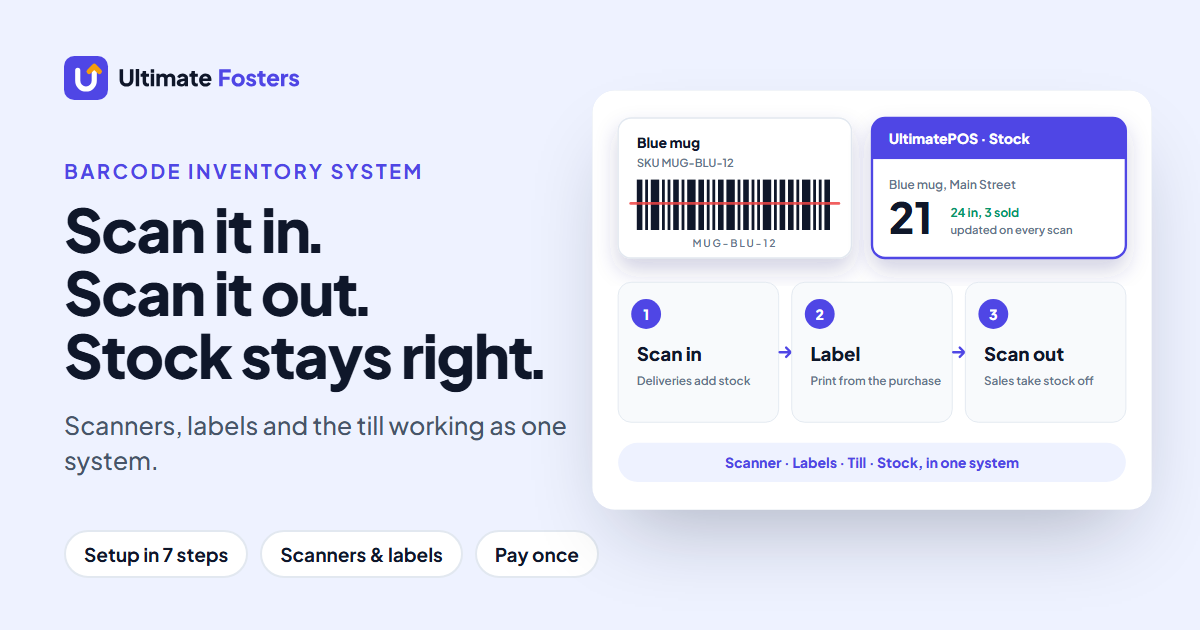
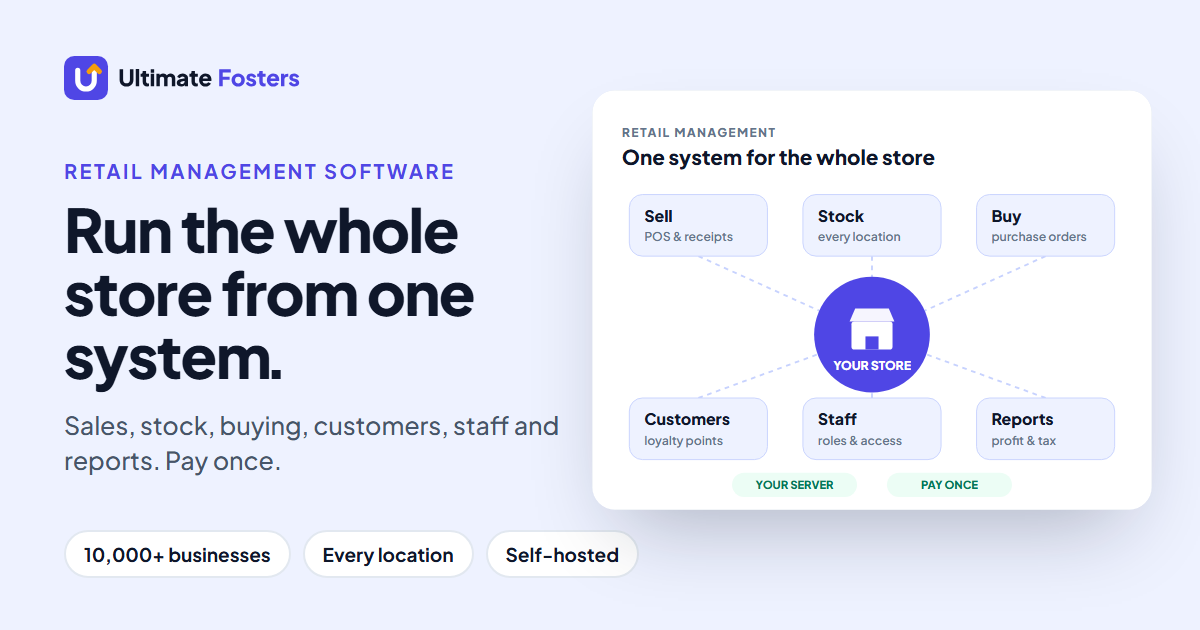
Short answer: a barcode inventory system is a scanner, barcode labels and software that changes your stock count every time you scan. UltimatePOS puts all of it in one system for $79 once: scan products in when they arrive, print their labels, scan them out at the till and move them between shops.
A small shop can start for about $305: UltimatePOS, a USB scanner and a thermal label printer. Used by 10,000+ businesses and rated 4.3+/5 from 500+ ratings on CodeCanyon.
Try UltimatePOS in the live demo (no sign-up) or see what the $79 licence includes.
A barcode inventory guide by the Ultimate Fosters team, makers of UltimatePOS for 10+ years. We checked every price on the seller’s own website in November 2026.
Counting stock by hand goes wrong in the same places every time: a delivery that never got entered, a sale typed under the wrong product, a shelf that says 12 when the system says 20. Barcodes fix this, because a scan can’t mistype a product name.
This guide shows what to buy, what it costs, which barcodes to use and where to scan. It also includes a worked example that follows one delivery from the box to the till, and the steps to run it all in UltimatePOS.
What is a barcode inventory system?
A barcode inventory system tracks stock by scanning a barcode on each product. Each scan tells the software what moved, so the stock count updates the moment it happens instead of at the end of the week. You may also see it called an inventory scanning system, or inventory management with a barcode scanner.
It has three parts:
- Barcodes. Most bought-in products already have one. You print labels for the rest.
- A scanner. A USB or wireless scanner, or a phone camera with the right app.
- Inventory software. It turns each scan into a stock change: up when goods arrive, down when you sell.
Of the three, the software decides whether your count stays right. A scanner on its own only types numbers. Software that is also your till, such as UltimatePOS, takes stock off with every sale, so the count stays right without anyone updating a spreadsheet. For the wider picture, see our guide to inventory management software for small business.
What you need, and what it costs
For one shop, the full kit costs a few hundred dollars. These are US prices from the sellers’ websites and US retailer listings in November 2026:
Swipe the table sideways to see all columns →
| What you need | Example | Price | Notes |
|---|---|---|---|
| Inventory and POS software | UltimatePOS | $79 once | Till, stock, labels, purchases and transfers in one system. No monthly fee |
| Barcode scanner | USB or wireless 2D scanner | About $26–$86 | A premium wireless model such as the Zebra DS8178 is about $400 |
| Label printer | Rollo USB label printer | $199.99 | Direct thermal, no ink; labels 1.57–4.1 inches wide |
| Labels | Thermal label rolls, or sheets for an office printer | Ongoing | Labels are the only running cost of a thermal printer |
| Barcode numbers | Code 128 from your own SKUs | Free | Only buy GS1 barcodes if other retailers will sell your products ($30 each from GS1 US) |
Scanner prices from US retailer listings in Google Shopping, November 2026. Rollo and GS1 prices from their own websites. Prices change, so check before you buy.
That makes about $305 for one shop, plus labels and wherever you run the software (your own server or a computer in the shop). A warehouse pays more, because rugged handheld computers cost about $570–$1,450 each.
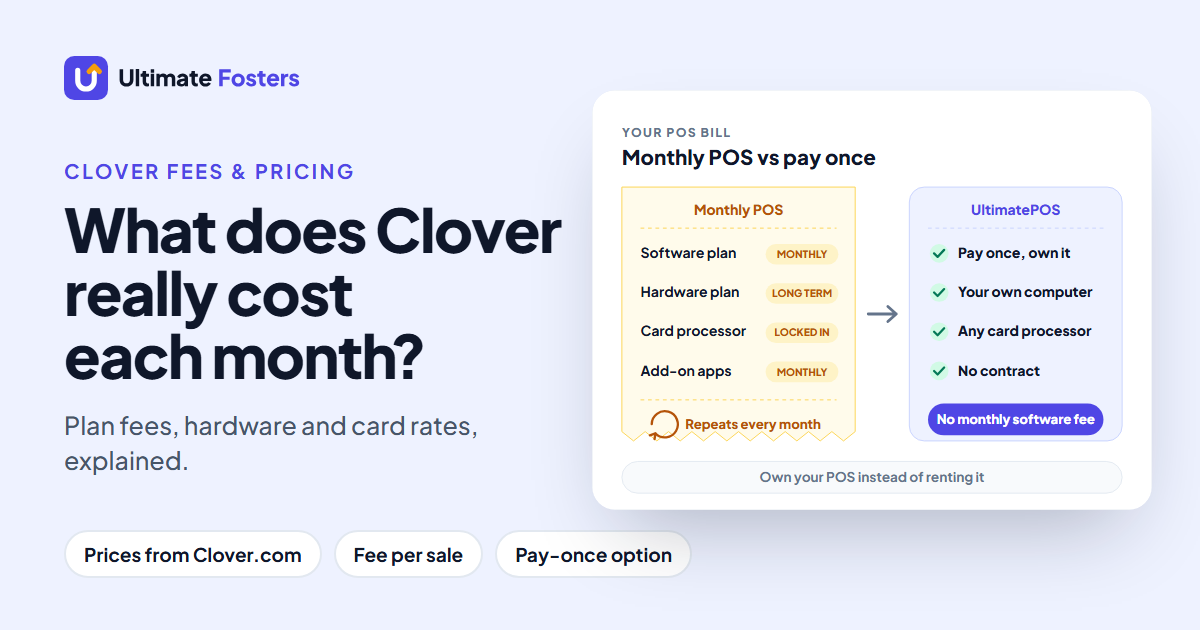
The bigger difference is the software fee over time. Many inventory apps charge every month, per user or per location. UltimatePOS is paid once. Our guide to the cheapest POS system compares software costs over several years.
Want to see the software before you buy the hardware? Try the barcode and label screens in the UltimatePOS live demo, or see what the $79 licence includes.
How to set up a barcode inventory system in 7 steps
You can set up a small shop in a day or two. Do it in this order:
- Decide your SKU rules. Keep SKUs short and unique, with letters and numbers only, for example MUG-BLU-12. Never reuse a SKU for a different product.
- Keep the barcodes you already have. For bought-in products, scan the maker’s UPC or EAN into the SKU field. You don’t need to relabel them.
- Use Code 128 for everything else. It holds letters and numbers, it’s free, and almost every scanner reads it. Avoid inventing 12-digit numbers that look like UPCs, because they can clash with real products.
- Scan every delivery in. Scan each product into the purchase record, so your stock goes up by exactly what arrived.
- Print labels from that delivery. Print one label per item received, so the labels match the count.
- Scan every sale out. Scan at the till, so each sale takes the item off stock at once.
- Count, then correct. Count one section of the shop each week, compare it with the stock report and fix any difference.
Each step has its own screen in UltimatePOS. See how to run them further down. Buying stock with purchase orders? Our guide to purchase orders shows how a PO becomes the delivery you scan in.
Where to scan: the five moments that change stock
Stock only stays right if you scan at every point where it moves:
Swipe the table sideways to see all columns →
| When | What you scan | What happens to stock |
|---|---|---|
| A delivery arrives | Each product into the purchase | Goes up by the quantity received |
| You label new stock | Nothing: you print labels from the purchase | No change; every item now has a barcode |
| A customer buys | Each item at the till | Goes down by the quantity sold |
| You move stock to another shop | Each product onto the transfer | Down in one shop, up in the other |
| You count the shelves | Each item as you count it | Shortfalls are corrected after the count |
The most common gap is the first one. If a delivery is put on the shelf without being scanned in, every sale of that product pushes the count further from what is on the shelf.
SKU vs UPC vs barcode: which code to use
These three get mixed up all the time. The SKU and the UPC are numbers; the barcode is the picture a scanner reads, and it can carry either one. The main UPC vs SKU difference is who issues the number: GS1 issues UPCs, and you create SKUs.
Swipe the table sideways to see all columns →
| SKU | UPC (or EAN) | Barcode | |
|---|---|---|---|
| What it is | Your own product code | A product number that is unique worldwide | The striped or square picture a scanner reads |
| Who makes it | You, or your software | Licensed from GS1 | Printed from a SKU or a UPC |
| Format | Letters and numbers, any style | 12 digits (UPC) or 13 digits (EAN) | Code 128, UPC-A, EAN-13, QR and others |
| Cost | Free | $30 for one from GS1 US, no annual fee | Free to print |
| When you need it | Always, for every product you stock | When other retailers or marketplaces will sell your product | Whenever you want to scan instead of type |
GS1 US also sells company prefixes: $250 for 10 products plus $50 a year, or $750 for 100 plus $150 a year (GS1 US, November 2026).
For a shop that resells products, scan the UPC that is already on the box and print Code 128 labels for your own items, bundles and anything loose. Each size or colour needs its own code, because each one is counted separately.
How to choose a barcode scanner
The scanner is the part of the system your staff handle most. Most shops need one per till and one for the stockroom. Pick by where you scan:
Swipe the table sideways to see all columns →
| Scanner type | Typical price | Best for | Good to know |
|---|---|---|---|
| USB wired | From about $26 | The till | Plug in and scan. It types the code like a keyboard |
| Wireless or Bluetooth | About $30–$86; premium about $400 | Scanning shelves and deliveries | Pick one with a USB receiver so it works like a wired scanner |
| Phone camera | Free with a phone | Looking up products, small shops | Needs an app; slower for big deliveries |
| Handheld computer | About $570–$1,450 | Warehouses | Rugged Android devices with a built-in scanner |
Prices from US retailer listings in Google Shopping, November 2026.
Choose a 2D scanner even if your labels are 1D. It reads both kinds, plus QR codes and barcodes on phone screens, and the price difference is small.
Barcode labels for inventory: printers and sheets
You can print inventory labels two ways:
- A thermal label printer and label rolls. Faster and cleaner for daily use. Direct thermal printers use heat-sensitive labels and no ink, such as the Rollo USB at $199.99, which prints labels 1.57–4.1 inches wide.
- Label sheets on an office printer. Fine for a first batch or a small shop. Pick a sheet size your software already supports so the labels line up.
Direct thermal labels can fade over time in heat and sunlight, which is fine for shelf stock that sells within months. For a label that must last years, thermal transfer printers use a ribbon instead.
Keep the label simple: product name, price and the barcode. Too much text on a small label shrinks the barcode until scanners struggle to read it. Print one test label and scan it before you print a whole delivery.
Selling by weight? Scale labels carry the weight inside the barcode. See how that works in our grocery store POS guide.
Example: one delivery, from the box to the till
Maple Street Gifts has two shops. A carton of 24 blue mugs arrives at the Main Street shop, and the barcode system follows it through five steps:
Swipe the table sideways to see all columns →
| Step | What the staff do | Main Street stock | Second shop stock |
|---|---|---|---|
| 1. Receive | Scan the mug into the purchase, quantity 24 | 24 | 0 |
| 2. Label | Print 24 labels from that purchase and stick them on | 24 | 0 |
| 3. Sell | Scan 3 mugs at the till over the weekend | 21 | 0 |
| 4. Move | Transfer 6 mugs to the second shop | 15 | 6 |
| 5. Count | The shelf count finds 14: one mug broke. Record it as a stock adjustment | 14 | 6 |
The product was created once with SKU MUG-BLU-12 and a Code 128 barcode.
At every step the system knows where each mug is. Without barcodes, steps 3 and 4 are where the count usually goes wrong: a sale rung up under a different mug, or 6 mugs carried to the other shop and never entered.
Barcode inventory software, app or spreadsheet: which to use
There are three common ways to run barcode inventory. Only one of them keeps stock right without extra typing:
Swipe the table sideways to see all columns →
| Option | How sales reach stock | Labels | Good to know |
|---|---|---|---|
| POS with inventory (UltimatePOS) | Automatically: every scan at the till takes the item off stock | Printed from products or purchases | Paid once. Runs on your own server or a shop computer, and we can install it for you for $25 |
| Barcode scanner app | You record sales in the app, or sync them from another till | Often included | Often a monthly fee, and checkout happens somewhere else |
| Spreadsheet and USB scanner | You type every sale in | Separate barcode tool | No till, no live count, easy to break |
If your shop takes payments at a counter, the POS route saves the most work, because selling and stock-keeping become the same action. See how this works for retail shops, hardware stores, thrift stores and wholesalers.
See barcode scanning in UltimatePOS
Open the live demo, search a product by SKU, add it to a sale and check the stock report. No sign-up needed.
Mistakes to avoid
- Reusing a SKU. Once a code means two products, every report for both is wrong.
- Making up UPC-style numbers. A 12-digit code you invent can match a real product. Use Code 128 for your own items.
- Skipping the delivery scan. Stock that is never scanned in makes every later count look short.
- Labels that are too small. If the barcode is squeezed by text, it won’t scan. Hide extra fields or use a bigger label.
- One code for all sizes or colours. Each variant sells at its own pace, so it needs its own code.
- Never counting. Breakage and theft don’t scan themselves. A weekly count of one section keeps errors small.
How to run barcode inventory management in UltimatePOS
Everything in the 7 steps above is built into UltimatePOS. This is where to find each part.
Set up products, deliveries and labels
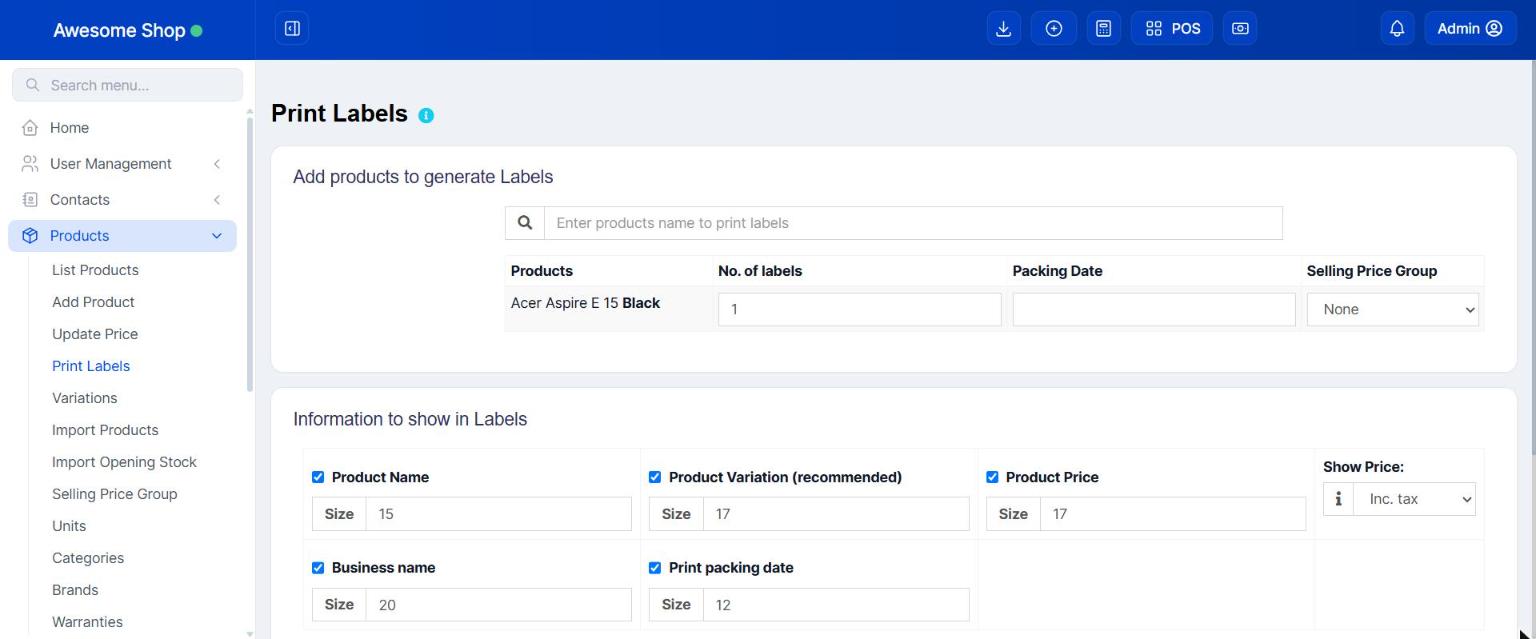
- Add your products. In Products, Add Product, scan the maker’s barcode into the SKU field, or leave it blank and UltimatePOS creates a SKU, with an optional prefix. The barcode type is Code 128 by default. Set an alert quantity to get a low-stock alert. Have a list already? Import products from Excel.
- Scan deliveries in. In Purchases, Add Purchase, scan or type each product, enter the quantity and cost, and save. Stock goes up at that location.
- Print labels. From the purchase list, choose Labels to print one label per item received, or use Products, Print Labels. Pick what to show (name, price, barcode), choose the layout and preview before you print.
- Match your label size. Use a built-in sheet layout or add your own label size for sheets or continuous rolls. UltimatePOS works with direct thermal barcode printers.
Sell, move and count stock
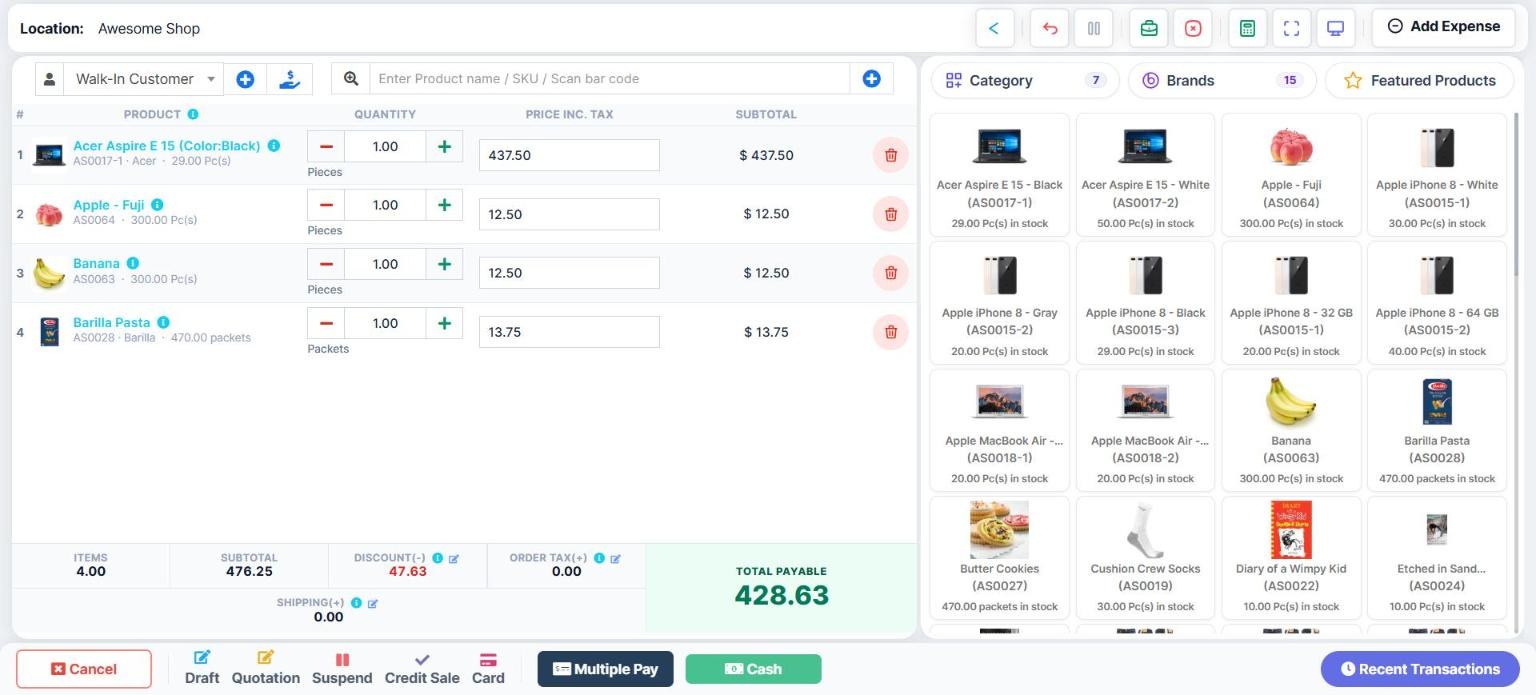
- Sell by scanning. Plug in a USB scanner, click the product box on the sales screen and scan. Each sale takes the item off stock.
- Move stock between shops. Create a stock transfer and scan or type each product’s SKU to add it. Stock leaves one location and arrives at the other when you mark it completed.
- Correct after a count. Compare your shelf count with the stock report and record any shortfall as a stock adjustment, for example a broken item.
See it for yourself: open the live demo, go to Products, Print Labels, add a product and preview its barcode label. No sign-up needed.
Want to scan with a phone? The UltimatePOS Android app can search and sell products by scanning with the camera. It connects through the REST API module. Selling by weight works too, with label scale barcodes.
Not technical? Our installation service sets up UltimatePOS on your server for $25. UltimatePOS is rated 4.3+/5 from 500+ ratings on CodeCanyon, where we are an Elite Author.
“We’ve been using UltimatePOS for 2 years. UltimatePOS is a powerful tool that helps us to manage stock, sales, purchases & other business day-to-day activities.”
CodeCanyon buyer review of UltimatePOS
Barcode inventory system: FAQs
What is a barcode inventory system?
It is a way of tracking stock where every product carries a barcode label. You scan the label when stock arrives, when you sell it and when you move it, and the software updates the count each time. A complete system has three parts: a scanner, printed labels and inventory software.
How much does a barcode inventory system cost?
For one small shop, about $305 to start: UltimatePOS at $79 once, a USB scanner from about $26 and a direct thermal label printer such as the Rollo USB at $199.99. After that, labels are the main running cost. A warehouse that needs rugged handheld computers pays about $570–$1,450 for each one, and monthly inventory apps add a fee for as long as you use them.
How do I create a barcode inventory system?
Give every product a unique SKU, keep the maker’s barcode where a product already has one, and print Code 128 labels for the rest. Then scan items into stock when a delivery arrives, scan them at the till when you sell, and count the shelves now and then to catch errors.
How do I use a barcode scanner for inventory?
Plug the scanner into the computer, click the product search box in your inventory or POS software, and scan. The scanner types the code for you, just like a keyboard. In UltimatePOS this works on the sales screen, when you add a purchase and when you add products to a stock transfer.
How do I make a barcode for a product?
Create a SKU for the product in your inventory software, choose Code 128 as the barcode type and print the label. In UltimatePOS you can leave the SKU blank to have it made for you, then print labels from Products, Print Labels. You only need a GS1 barcode if other retailers will sell your product.
How do I generate SKU barcodes?
Use software that turns the SKU into a barcode. In UltimatePOS, leave the SKU field empty when you add a product and it creates one, with an optional prefix such as your shop’s initials. The default barcode type, Code 128, prints any SKU made of letters and numbers.
Do I need to buy UPC barcodes?
Only for products you make and sell through other retailers or marketplaces. Products you buy for resale already carry the maker’s barcode, and items you label for your own shop can use free Code 128 barcodes. From GS1 US, one barcode costs $30 with no annual fee.
What is the difference between a SKU and a barcode?
A SKU is the code you create to identify a product in your own stock, such as MUG-BLU-12. A barcode is the striped picture a scanner reads. The barcode can carry your SKU, a UPC number or another code, so one product can have both.
Is a UPC the same as a SKU?
No. A UPC is a 12-digit number licensed from GS1 that identifies a product worldwide, so every shop selling it sees the same number. A SKU is your own internal code, free to create and different in every shop. Many shops use the UPC as the SKU for products that already have one.
What type of barcode is best for inventory?
Code 128 for your own labels, because it holds letters and numbers and costs nothing. For bought-in products, scan the UPC or EAN that is already printed on them. QR codes are better for links and documents than for checkout.
Is there a free barcode inventory system or app?
Yes. Free barcode scanner apps and spreadsheets work for a few products, and a spreadsheet takes input from any USB scanner. Most of them don’t run a till, so sales don’t take stock off automatically. UltimatePOS costs $79 once and gives you the till, labels and stock in one system, with no monthly fee.
What is the best barcode inventory system for a small business?
UltimatePOS, for most shops. It joins barcode scanning, label printing, the till and stock control in one system for $79 once. Stock changes every time you receive, sell or move an item, and it works with low-cost USB scanners and direct thermal label printers.
What is the best barcode inventory system for home use?
For a home collection or pantry, a free phone app or a spreadsheet is enough, because nothing is sold. Once you start selling what you store, you need a till that takes stock off with each sale, which is what UltimatePOS adds.
How does a barcode store information?
A standard 1D barcode stores a short code, such as a SKU or UPC number, in the widths of its bars and spaces. The scanner reads that code and your software looks up the product, its price and its stock. The price and the stock count live in the software, not in the barcode. 2D codes such as QR codes hold more data in a grid of small squares.
Can a barcode be tracked?
Not on its own. A barcode has no GPS or signal; it is only read when someone scans it. Each scan records what moved, where and when in your software, which is how a barcode system follows stock from the delivery to the shelf, the till and other shops.
How do I keep track of inventory manually?
List every product with its SKU, location and quantity in a spreadsheet. Add each delivery, subtract each sale and count the shelves regularly to fix mistakes. It works for a few dozen products. Beyond that, typing errors build up, and that is when a barcode system starts to pay for itself.
What are the four main types of inventory systems?
The four usually listed are periodic (you count at set times), perpetual (stock updates with every sale and delivery), barcode and RFID. A barcode system is the most common way for a small shop to run a perpetual inventory, because every scan updates the count.
Can I use my phone as a barcode scanner for inventory?
Yes, with the right app. The UltimatePOS Android app can search for and sell products by scanning with the phone camera, and connects to your system through the REST API module. For receiving big deliveries, a USB or wireless scanner is still faster.
Do barcode scanners work with Excel?
Yes. A USB scanner types the code into whichever cell is selected, so you can build a simple list in Excel. However, Excel won’t take stock off when you sell, so counts drift unless every sale is typed in too.
Can I count inventory with a barcode scanner?
Yes. Scanning while you count avoids reading errors. In UltimatePOS, you count the shelf, compare it with the stock report and record any shortfall as a stock adjustment. That keeps your stock count and your profit reports in line with what is really on the shelf.
What are the disadvantages of barcode scanners?
Labels can be damaged, faded or printed too small to read, and someone has to label every item without a barcode. Many 1D laser scanners can’t read QR codes or barcodes on phone screens. A 2D scanner and a quick test print solve most of these.
Which barcode scanners work with UltimatePOS?
Any USB barcode scanner that types the code into the field you click, which is how most scanners work out of the box. Wireless scanners with a USB receiver work the same way.
Which label printers work with UltimatePOS?
UltimatePOS supports barcode printers that use direct thermal printing, such as the Rollo USB label printer. You can also print label sheets on an office printer, using one of the built-in sheet layouts or your own label size.
Scan, label and sell in one system
UltimatePOS: $79 once for the till, stock, barcode labels and every location. Updates and 6 months of support included.
About this guide
Written by the team at Ultimate Fosters, who build and support UltimatePOS, a POS and inventory system used by 10,000+ businesses for 10+ years. We checked each UltimatePOS step against our documentation and in the live demo, read the GS1 US and Rollo prices on their own websites and took scanner prices from US retailer listings, all in November 2026. Prices change, so check them before you buy.
Sources
- GS1 US: barcode and company prefix pricing
- Rollo: USB label printer specifications and price
- UltimatePOS: CodeCanyon listing and documentation on barcode scanners, printing labels, barcode printers, purchases, stock transfers and stock adjustments
Related: inventory software for small business · purchase orders · cheapest POS system · retail POS system · grocery POS
Leave A Comment